
PART 3:
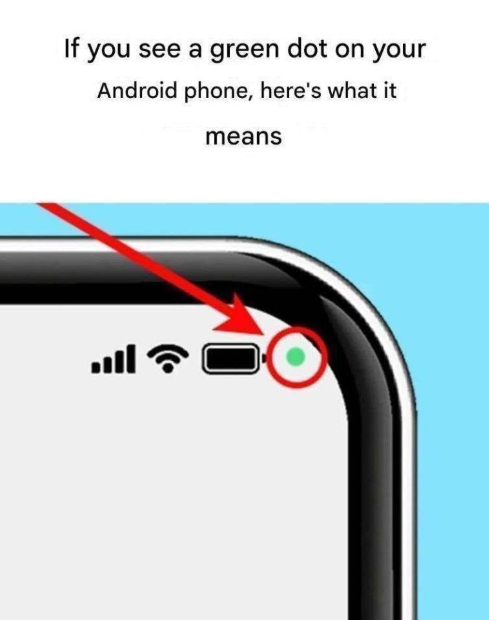
If you ever see the green dot appear on your screen and want to know which application is using your camera or microphone, checking the details takes less than two seconds. Android makes it seamless to inspect and manage your privacy permissions right from the status bar without interrupting what you are doing.
Here is how to quickly identify the active application:
- Swipe Down from the Top: When the green dot is visible, simply swipe down from the top edge of your screen to open your Quick Settings / Notification Shade.
- Tap the Green Icon: At the top of the expanded menu, you will see a prominent green bar or icon displaying the exact sensor currently in use (e.g., “Used by Camera” or “Used by WhatsApp”). Tapping this icon opens a quick pop-up window showing the exact app name.
- Manage Permissions Immediately: Tap the app name in that pop-up window to jump directly into its Permissions menu. From there, you can easily change access settings to “Only while using the app” or “Ask every time”, or revoke permissions entirely with a single tap.
Taking a moment to review these permissions ensures that third-party applications only use your device’s hardware when you explicitly want them to. But what steps should you take if an app is using your sensors without your permission? Let’s break down the best security habits in Part 4!
⚡ HEAD TO PART 4 NOW TO DISCOVER THE ULTIMATE MOBILE PRIVACY CHECKLIST! ➡️
